Figma Developer Handoff Checklist
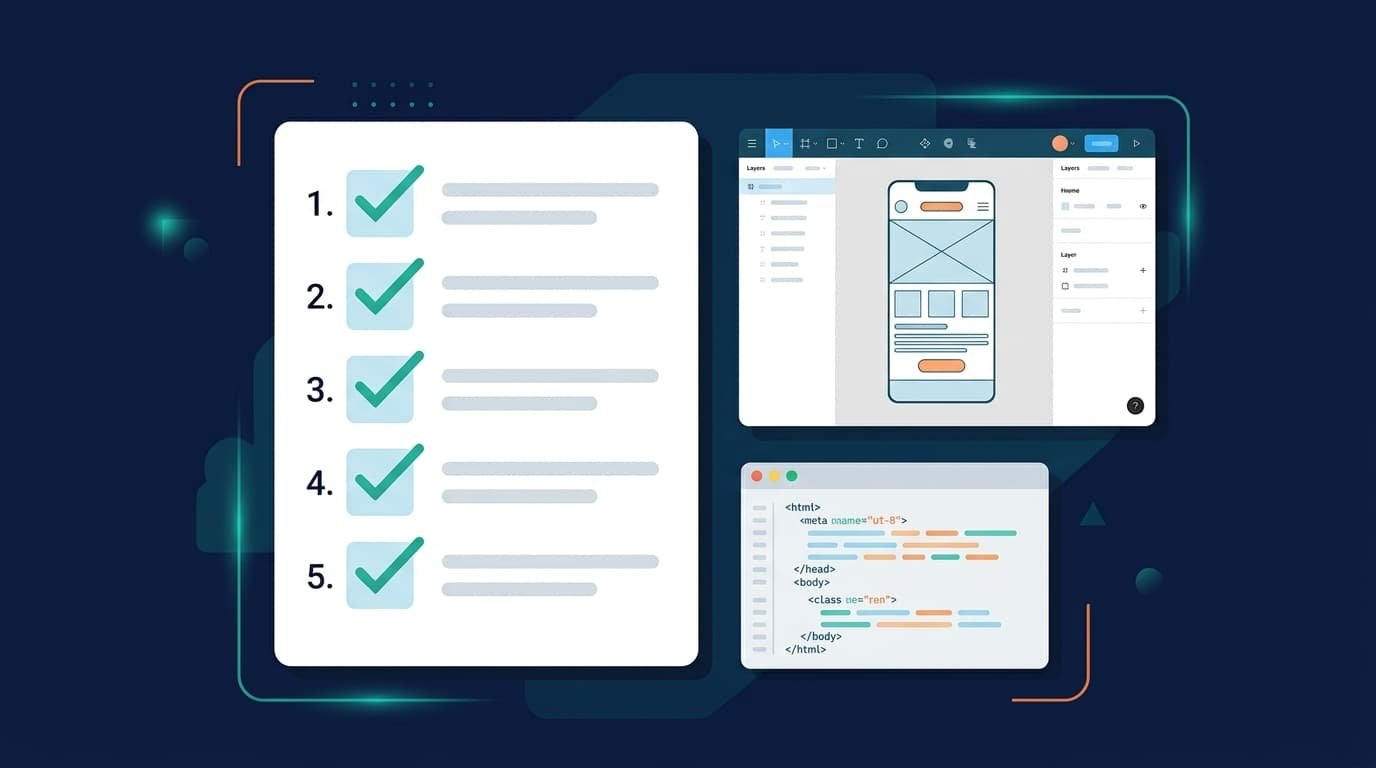
A good Figma developer handoff checklist saves days of back-and-forth, avoids rebuilds, and gets your design built the way you intended. Use this list before you send any Figma file to a developer, whether it is for WordPress, Shopify, or any other platform.
Why Handoff Problems Happen
Designers think in screens; developers build systems. When the file shows only the ideal desktop view, developers have to guess the rest, and guesses cost time and money. The checklist below closes those gaps.
A. Figma Developer Handoff Checklist: File Organization
- Pages are named and ordered (Cover, Desktop, Tablet, Mobile, Components).
- Layers have meaningful names, not “Frame 2847”.
- Unused and hidden layers are deleted.
- Related elements are grouped, and auto layout is used where possible.
- A cover page states the project name, version, and contact.
B. Figma Developer Handoff Checklist: Layout and Responsiveness
- Desktop, tablet, and mobile frames exist for every page.
- A grid or column structure is defined.
- Spacing follows a consistent scale (for example, 8, 16, 24, 32).
- Maximum content width is specified.
- Behavior between breakpoints is noted (stack, wrap, hide).
C. Figma Developer Handoff Checklist: Design System
- Colors are saved as styles or variables with clear names.
- Text styles define font, size, weight, line height, and letter spacing.
- Buttons, inputs, and cards exist as components with variants.
- Border radius and shadows are consistent.
- Icons are consistent in size and stroke.
D. Figma Developer Handoff Checklist: States and Interactions
- Hover, focus, active, and disabled states for buttons and links.
- Form error and success states.
- Empty states (no results, empty cart).
- Menu, modal, and dropdown behavior.
- Animations and scroll effects are described in notes or a short prototype.
E. Figma Developer Handoff Checklist Assets and Content
- Fonts are listed with license and fallback fonts.
- Icons and logos are ready to export as SVG.
- Images are final, with sizes noted and alt text suggested.
- Real or realistic content is used, including long titles and short ones.
- Notes explain anything that is not obvious.
How to Run the Handoff
- Do a 10-minute self-review using the list above.
- Share the file with view and comment access, and name one point of contact.
- Hold a short walkthrough call or record a Loom video.
- Agree how change requests will be handled after the build starts.
Common Handoff Mistakes
- Sending a file with only the desktop view.
- Changing the design after development has started.
- Leaving fonts unlicensed or unspecified.
- Exporting large PNGs instead of optimized or vector assets.
- Giving feedback in several channels instead of one.
Want a Developer Who Loves a Clean File?
WPCodingLoft builds Figma designs into fast WordPress and Shopify sites. Send us your file for a free readiness check.
Frequently Asked Questions
What Should a Designer Give a Developer?
The Figma file with all breakpoints, states, and components, exportable assets, font details, and notes on interactions and animation.
Do I Need Dev Mode in Figma?
It is helpful for inspecting spacing, colors, and code hints, but a clean file and clear notes matter more than any tool.
How Many Breakpoints Should I Design?
At minimum desktop and mobile. Adding tablet is safer for complex layouts.
Who Should Check the File Before Handoff?
The designer first, then ideally a developer for a quick review, since developers spot missing states fast.
Additional Resources
- Read our Figma to WordPress guide
- Explore our WordPress and Shopify development services
- Figma Help Center
- Figma Dev Mode Guide
- Figma Variables Guide