Speed up WordPress Website
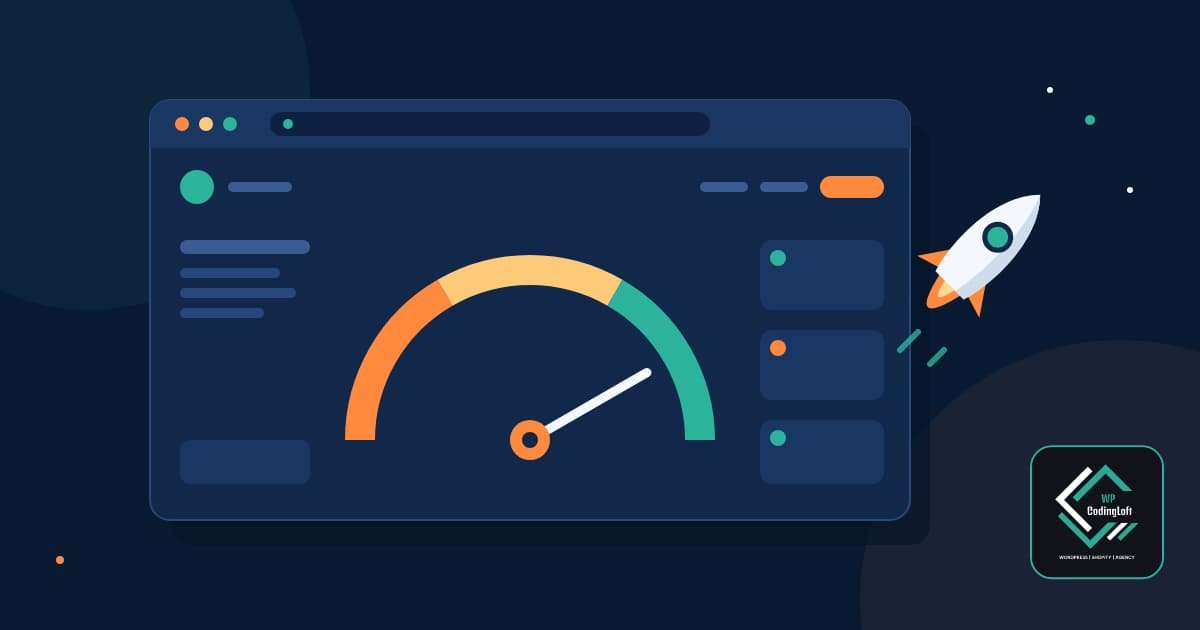
If you want to Speed up WordPress Website, start by fixing the few things that cause most of the delay: heavy images, too many plugins, weak hosting, and no caching. This guide walks through 15 fixes in order of impact, so you can get the biggest gains first.
Why WordPress Speed Matters
Slow pages frustrate visitors and can reduce enquiries and sales. Google also uses page experience signals, including Core Web Vitals, as one factor among many in search. Speed will not replace good content, but a slow site makes everything else harder.
Speed up WordPress Website: Know the Three Core Web Vitals
- Largest Contentful Paint (LCP): How fast the main content appears. Aim for 2.5 seconds or less.
- Interaction to Next Paint (INP): How quickly the page responds when someone clicks or taps. Aim for 200 milliseconds or less.
- Cumulative Layout Shift (CLS): How much the layout jumps while loading. Aim for 0.1 or less.
These are Google’s published targets. Check them for your own pages in PageSpeed Insights and the Core Web Vitals report in Google Search Console.
Speed up WordPress Website Steps:
Step 0: Measure First
Test your homepage, one blog post, and one key service page on mobile in PageSpeed Insights. Save the results so you can compare them after each change.
1. Choose Decent Hosting
Cheap shared hosting can be slow under load. Look for current PHP support, server-level caching, and good support. If your server response is slow, no plugin can fully fix it.
2. Use a Supported PHP Version
Newer supported PHP versions generally run WordPress faster and more securely. Check your host’s control panel, and test on a staging site before upgrading.
3. Add Caching
Caching stores ready-made versions of your pages. Use one caching solution only, either your host’s built-in cache or a single plugin. Running several together often causes problems.
4. Optimize Images
Images are one of the most common causes of slow pages. Optimize them by following these steps:
- Resize images to the dimensions at which they are displayed.
- Use WebP where possible.
- Compress images before or during upload.
- Set width and height attributes to prevent layout shifts.
5. Lazy-Load Images Below the Fold
WordPress lazy-loads images by default in current versions. Make sure your main hero image is not lazy-loaded, since it should load first.
6. Audit Your Plugins
The number of plugins matters less than what they do. Remove plugins you do not use, replace heavy plugins with lighter ones, and test each change to confirm that functionality still works.
7. Choose a Lightweight Theme
A bloated theme with many built-in features can slow every page. A lean theme or block theme is usually a better base for a fast WordPress website.
8. Limit Fonts
Use one or two font families and only the weights you need. Self-host fonts where possible and use font-display: swap to help text appear while fonts load.
@font-face {
  font-family: 'YourFont';
  src: url('/fonts/yourfont.woff2') format('woff2');
  font-display: swap;
}
9. Minify and Combine Carefully
Minifying CSS and JavaScript reduces file size. Test after enabling it because aggressive combining can break layouts and scripts. Combining files is not always beneficial with modern HTTP protocols, so measure the results rather than assuming it will improve performance.
10. Delay Non-Essential JavaScript
Chat widgets, tracking scripts, and pop-ups can often wait until after the page loads or until the visitor interacts. Reducing unnecessary JavaScript work can help improve LCP and INP, depending on how the scripts affect the page.
11. Use a CDN
A content delivery network (CDN) serves files from locations closer to visitors. It can help most when your audience is spread across different countries.
12. Clean Your Database
Remove old post revisions, spam comments, and expired transients where appropriate. Back up your database before cleaning, and do not delete anything you cannot identify.
13. Fix Layout Shift
Reserve space for images, ads, and embeds. Avoid injecting banners above existing content after the page loads. These changes help keep the layout stable and improve Cumulative Layout Shift (CLS).
14. Reduce Page Builder Bloat
If you use a page builder, avoid deep nesting, heavy animations, and unused widgets. Simple layouts with fewer unnecessary elements can improve loading speed and responsiveness.
15. Re-Test and Monitor Monthly
Website performance can decline as you add plugins, features, and content. Re-test monthly and after any major change. Compare your results against the baseline you saved before optimization.
Quick-Win Checklist For Speed up WordPress Website
- Baseline scores saved for three pages.
- Hosting and PHP version checked.
- One caching solution active.
- Images resized, compressed, and converted to WebP where appropriate.
- Unused plugins removed.
- Fonts limited to one or two families.
- Non-essential scripts delayed where appropriate.
- Database backed up and cleaned.
Want Professional WordPress Speed Optimization?
WPCodingLoft offers WordPress development services that can help identify performance bottlenecks and implement suitable fixes. Explore our WordPress and WooCommerce development services or request an audit to discuss your website’s performance needs.
Frequently Asked Questions About Speed up WordPress Website
What Is a Good WordPress Load Time?
There is no single load-time number that guarantees a good experience. Aim to meet Google’s Core Web Vitals targets on mobile and compare your website’s performance before and after optimization.
Do Too Many Plugins Slow WordPress?
Not by count alone. A few heavy plugins can slow a site more than many lightweight ones. Measure their impact and remove or replace plugins that create unnecessary overhead.
Is Caching Enough to Speed Up WordPress?
Caching can help significantly, but it will not fix oversized images, slow hosting, or heavy scripts. The best results usually come from addressing several performance issues together.
How Often Should I Test WordPress Speed?
Test monthly and after any major theme, plugin, or design change. Regular checks help you catch performance regressions before they affect visitors.