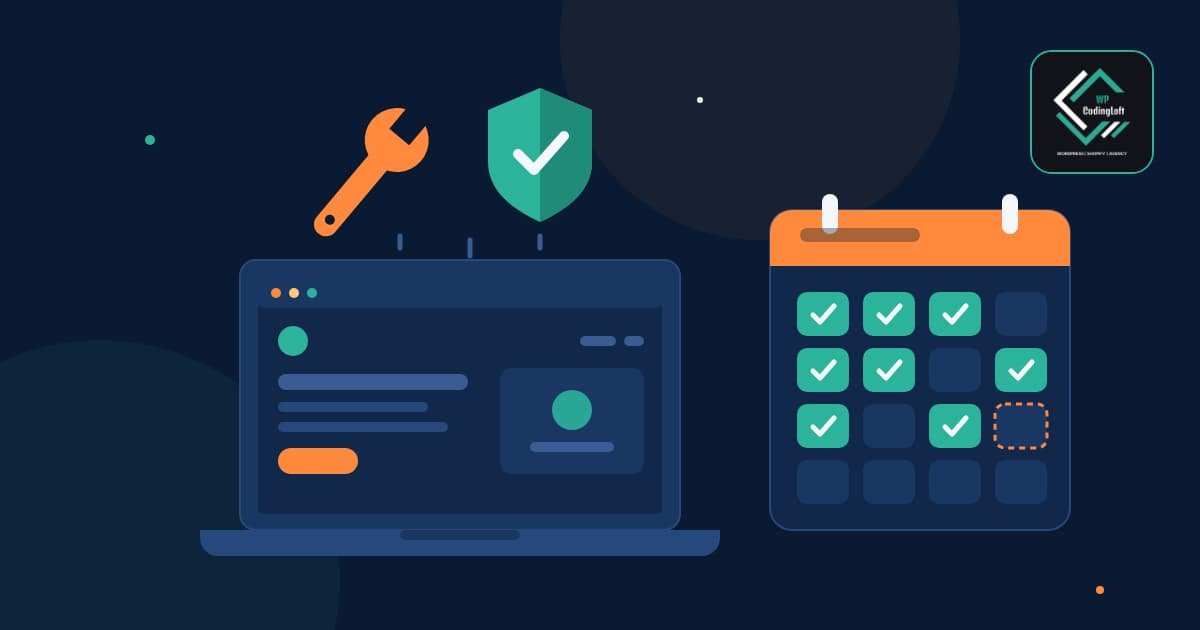
A reliable WordPress maintenance checklist keeps your site secure, fast, and working while you focus on running your business. Many website problems, from hacked pages to broken forms, can be prevented by completing routine maintenance tasks. Use this checklist to stay on top of them.
WordPress Maintenance Checklist Matters
WordPress core, themes, and plugins release updates that include new features, compatibility improvements, and security fixes. Sites that go months without updates can become more vulnerable to attacks and are more likely to experience compatibility issues when updates are eventually installed. Regular maintenance is often less costly than recovering from a major failure.
Before You Start WordPress Maintenance Checklist: Three Safety Rules
- Always take a backup before updating anything.
- Test major updates on a staging site first.
- Update one component at a time when practical, and check the website after each update.
Weekly WordPress Maintenance Tasks (15–30 Minutes)
- Check that the latest backup completed successfully and can be restored.
- Review pending plugin and theme updates, then install them after backing up and checking compatibility.
- Test your most important forms and checkout or booking flow.
- Review comments and remove spam.
- Check that the website loads correctly and key pages work on mobile devices.
Monthly WordPress Maintenance Tasks (1–2 Hours)
- Review available WordPress core updates and apply them after backing up and testing on staging when possible.
- Run a security scan using a trusted security plugin or your hosting provider’s tools.
- Review user accounts and remove former users or reduce unnecessary administrator access.
- Check uptime reports for outages or recurring availability issues.
- Run Google PageSpeed Insights on your homepage and one key page, then compare the results with the previous month.
- Review Google Search Console for indexing problems, crawl errors, and Core Web Vitals issues.
- Look for broken internal and external links.
Quarterly WordPress Maintenance Tasks (2–3 Hours)
- Remove plugins and themes you no longer use, while retaining an appropriate active theme and any required parent themes.
- Clean the database by reviewing old revisions, spam, and expired transients after creating a backup.
- Review plugin health and confirm that important plugins are still maintained, updated, and supported.
- Test the website across different browsers, screen sizes, and devices.
- Review page titles and meta descriptions on your most important pages.
- Check that website emails, including contact form notifications and order emails, are being delivered successfully.
Yearly WordPress Maintenance Tasks
- Renew your domain, hosting, and paid plugin licenses, and record their renewal dates.
- Review your hosting plan, website performance, available resources, and support quality.
- Audit website content and update, consolidate, or remove outdated posts and pages where appropriate.
- Review your privacy policy, cookie notice, and terms against the requirements that apply to your business and audience.
- Test your disaster recovery process by restoring a backup to a staging environment.
WordPress Security Basics to Keep in Place
- Use strong, unique passwords and a reputable password manager.
- Enable two-factor authentication for administrator accounts.
- Use appropriate login protection, such as rate limiting or login attempt restrictions.
- Review file permissions and avoid using predictable administrator usernames.
- Use HTTPS and ensure your SSL/TLS certificate renews on time.
- Remove unnecessary administrator accounts and permissions.
WordPress Backup Basics For WordPress Maintenance Checklist
Store backups away from your website server, such as in secure cloud storage. Keep multiple restore points based on how frequently your content or orders change, and test restoring a backup regularly.
A backup you have never tested is not a reliable recovery plan. For business websites and online stores, make sure your backup strategy covers both website files and the database, including important customer and order data where applicable.
Should You Maintain WordPress Yourself or Hire Help?
Doing it yourself can work well if you are comfortable managing backups, staging sites, updates, and troubleshooting and have time to complete the tasks consistently.
Consider a professional maintenance service if downtime would cost you money, you operate an online store, or you manage multiple websites. Before choosing a provider, ask exactly what is included, how quickly they respond to issues, how backups are handled, and whether emergency recovery is covered.
For businesses that need development and ongoing technical support, explore WPCodingLoft’s WordPress and WooCommerce development services.
Turn This Checklist Into a Team Task List
Copy the weekly, monthly, quarterly, and yearly sections into a shared task management tool. Assign an owner and due date to each task, and record any issues that need follow-up.
Consistent small maintenance tasks are easier to manage than occasional, large clean-ups. A documented process also helps your team identify recurring issues before they affect visitors or business operations.
Need Help With WordPress Maintenance?
WPCodingLoft provides WordPress development and technical support for agencies and businesses. If you need help maintaining your website, troubleshooting issues, or improving performance, contact WPCodingLoft to discuss your requirements.
Frequently Asked Questions About WordPress Maintenance Checklist
How Often Should I Update WordPress?
Check for plugin and theme updates weekly, and apply WordPress core updates as soon as practical after backing up and checking compatibility. Security updates should receive prompt attention. Test major changes on staging whenever possible.
What Happens If I Never Update WordPress?
Your website can become more vulnerable to attacks and compatibility issues. Over time, outdated components can become harder to maintain, and delayed updates may require more troubleshooting and testing.
How Much Does WordPress Maintenance Cost?
Pricing varies by provider, website complexity, and the level of support included. Compare written plans that clearly explain backups, updates, security monitoring, uptime checks, emergency support, and response times.
Do I Need a Staging Site?
A staging site is strongly recommended for business websites. It allows you to test updates and changes in a separate environment before applying them to your live website, reducing the risk of downtime and broken functionality.